How do I preview or save content in Khan Academy Reimagined?
Bijgewerkt
This article explains how teachers in Khan Academy Reimagined can browse lessons and unit missions, preview them, and choose to either save for future assignment or assign now, all without committing immediately.
Previewing or saving content
Follow these steps to preview or save Khan Academy content in Khan Academy Reimagined.
Step 1: Open your class
From your teacher dashboard, select the class where you’d like to find or assign content.
Step 2: From your class view, select the Assignments tab.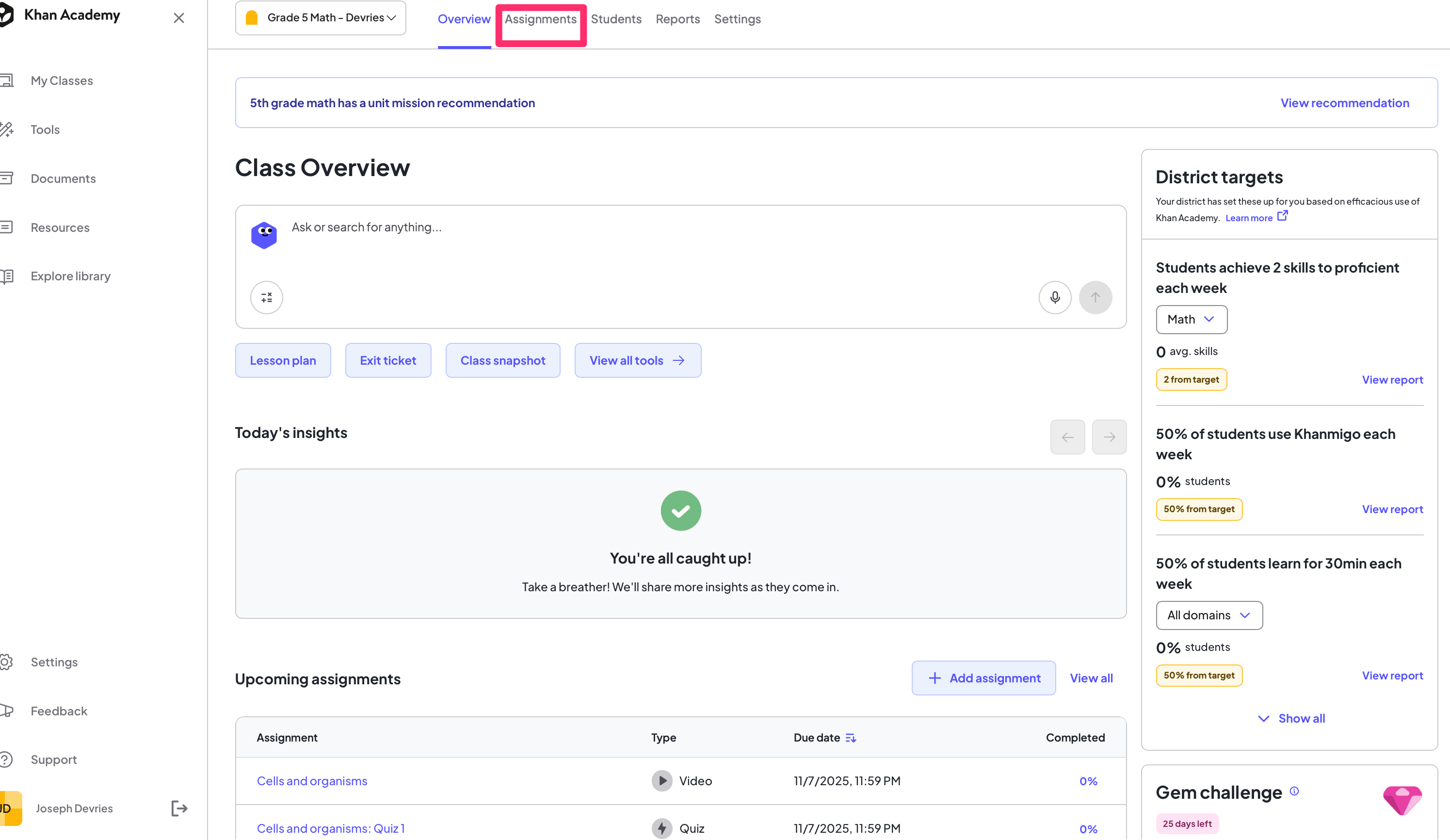
- Click + Add assignment and choose whether you’d like to explore Content or Unit missions.
- Khanmigo activity and Writing Coach will take you to different pages
Step 3: Choose content or unit missions
You are then taken to the Assign Content page. This is where your saved content would live for easy access.
- From the left-hand drop-down menu, click on "Edit Courses".
Step 4: Browse and preview
A pop-up course catalog appears where you can browse available courses.
- Using the pop-up course catalog, search by keyword or select a subject or course to explore.
- When you find something interesting, click on the box next to the course, then select Preview (preview appears after you check the box)
- A new tab will open showing the content as it appears in the classic Khan Academy library.
Step 5: Decide what to do next
After previewing, you can choose what to do with the content:
- Preview only: Close the preview tab when you’re finished reviewing. The content won’t be saved or assigned.
-
Save to assign later: Click Save (on the popup) to keep the course available for future use.
- Assign it to your class: For full steps, see How do I make assignments for my students in Khan Academy Reimagined?
Tips for using Preview or Save
- Use Preview to check that the content matches your teaching goals.
- Use Save if you’re building out a set of future assignments or want to revisit materials later.
- You can return to saved content anytime from your teacher dashboard.