How do I use the Desmos scientific calculator?
Exercises that allow a calculator will include the Desmos four-function, scientific, or graphing calculator built right into the exercise.
In this article, we'll explore how to use the Desmos scientific calculator. To follow along, open it at desmos.com/scientific.
Let's explore the calculator
The top row of the keypad shows three different options: main, abc and func.
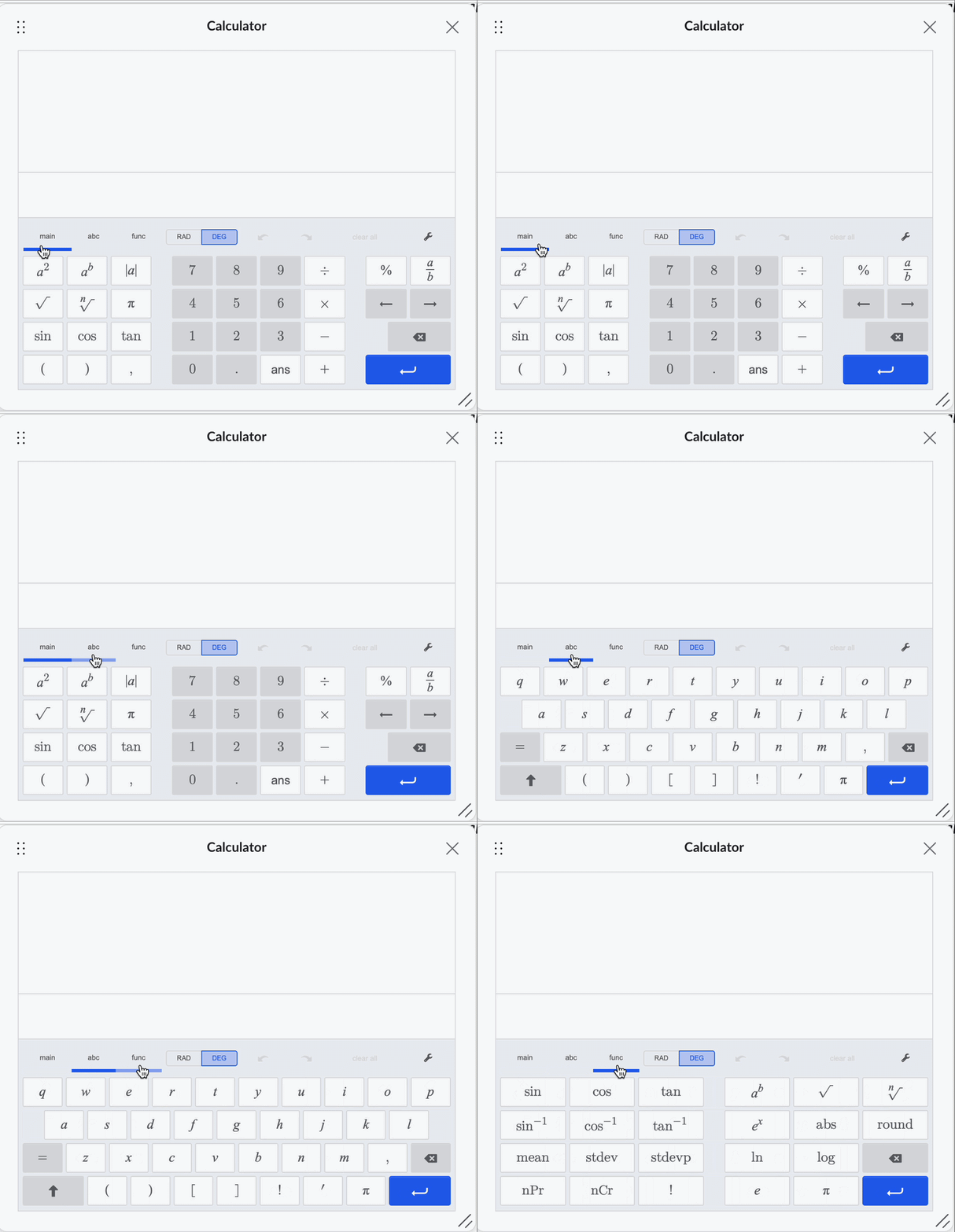
Main
With the main option selected, commonly used operations and functions such as exponents, absolute value, roots, and trigonometric functions are available on the left-hand side. The middle of the keyboard contains a classic calculator setup of numbers and operations such as division and subtraction.
ABC
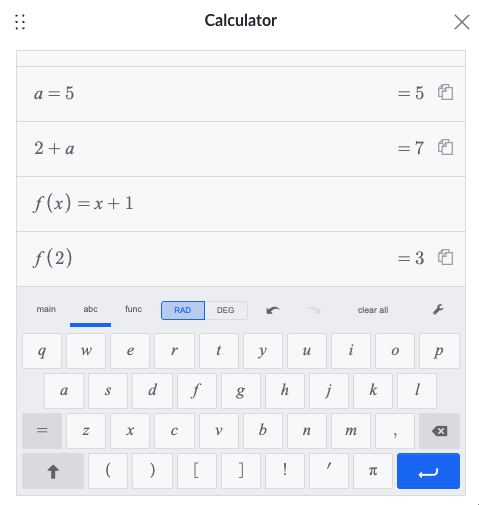
Selecting the abc button will show you the alphabet keyboard. The factorial (!) operation is also listed at the bottom.
A great use of the alphabet keyboard: you can define a variable simply by typing a letter, the equals sign, and then the value the calculator should store as that variable. You can also do this to name functions!
FUNC
The func option for the scientific calculator will show function operations such as logarithms, trigonometric functions and some statistical commands.
Things to note
Near the top of the calculator, you'll also see a button to switch between radian and degree mode. Double check which mode you're in before evaluating a trig function, since the same input gives a different output depending on the mode.
The numeric buttons disappear when you switch over to the ABC or FUNC tabs. That's okay! You can always type directly from your keyboard into the input box, no matter which tab is showing.
Typing shortcuts and tips
In addition to the calculator buttons, these are typing shortcuts for some common calculator commands.
| Command | How to type | Example |
|---|---|---|
| exponent | ^ |
2^3 → 23
|
| fraction | / |
1/2 → ½ |
| square root | sqrt |
sqrt(16) → √16 |
| cube root | cbrt |
cbrt(8) → ∛8 |
| nth root | nthroot |
nthroot 27, 3 → ∛27 |
| subscript | _ |
x_1 → x1
|
| logarithm | log |
log 100 → log(100) |
| natural log | ln |
ln(15) → ln(15) |
| custom log base | log_ |
log_2(8) → log28 |
| pi | pi |
π |
| infinity | infinity |
∞ |
| absolute value | abs |
abs(-5) → |−5| |
| previous answer | ans |
3+ans → adds the last computed value to 3 |
| trig function | csc( |
csc(x+2) → csc(x + 2) |
How do I type the rest of the trigonometric functions?
| Trig function | Calculator command |
|---|---|
| sine | sin( |
| cosine | cos( |
| tangent | tan( |
| cosecant | csc( |
| secant | sec( |
| cotangent | cot( |
Beyond the shortcuts above, the following habits will help you avoid common typing mistakes and stay in control of where your cursor lands.
Group with parentheses
If you're typing more than one term into a numerator, denominator, or exponent, wrap it in parentheses first. This keeps everything together in that one spot, instead of part of it spilling out where you didn't intend.
Arrow your way out
Once you're finished typing inside a numerator, denominator, or exponent, press the right arrow key to move your cursor back out to the main line. This tells the calculator you're done with that spot, so anything you type next lands outside it instead of getting pulled back in.
Converting decimals to fractions
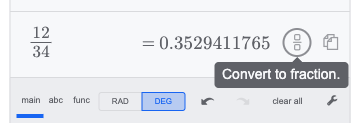
If the answer to your calculations is a decimal, and you want a fraction, click the fraction button that appears right next to the decimal answer. This will automatically convert the decimal to a fraction, and vice versa.
Backspace to clear a whole group
If your cursor is sitting just outside a numerator, denominator, or exponent and you press backspace, the calculator deletes that entire group in one go. This is handy when you want to redo one piece of an expression without retyping everything around it.
Skip retyping a closing parenthesis
The calculator automatically adds a closing parenthesis whenever you type an opening one. If you reach the end of your expression and a closing parenthesis is already waiting for you, press the right arrow key to move past it rather than typing your own (typing one anyway adds an extra, unmatched parenthesis).
Summary
You're now ready to use the Desmos scientific calculator with confidence! To recap what we covered:
- The calculator has three tabs which contain different operations and functions. You can always type directly from your keyboard, no matter which tab is showing.
- A handful of typing shortcuts let you skip the on-screen buttons entirely and type expressions straight from your keyboard.
- A few small typing habits keep you in control of your cursor.
The best way to get comfortable is to keep experimenting! Try out each tab, mix in a few typing shortcuts, and get used to checking your angle mode before you evaluate a trig function. The more you play around with the calculator, the more natural it'll feel the next time a calculator-allowed exercise puts it right at your fingertips.