How can I adjust my Enterprise Starter plan's billing and subscription details?
If you purchased an Enterprise Starter subscription or were granted billing access by your organization, you can view and manage your subscription from the Billing dashboard.
Only admins with billing access can view or manage subscription settings. If you don’t see the “Billing” option in your Administrator dashboard, reach out to your school or district’s administrator.
Who can manage the subscription and view the Billing dashboard?
The person who originally purchased the plan automatically has billing access and can see the Billing tab of the Admin Dashboard. This person can then grant or remove billing access to/from other admins.
How to access the Billing dashboard:
- Select your name in the top-right corner of the screen.
- Choose Administrator dashboard from the dropdown.
- In the left-hand menu, scroll down and select Billing.
What you can do in the Billing dashboard:
From the billing dashboard, you can:
- View your current plan and renewal date
- Manage student seat count
- Check your current seat usage
- Update payment information
- Grant or remove billing access
- Apply for tax exemption
- View and download receipts and invoices
How to check your current seat usage:
You can see how many student seats are currently in use in the Plan details section of your billing dashboard.
This section displays:
- Purchased seats
- Occupied seats
- Remaining seats
This overview helps you monitor usage and anticipate when you may need to purchase additional seats.
Managing student seats:
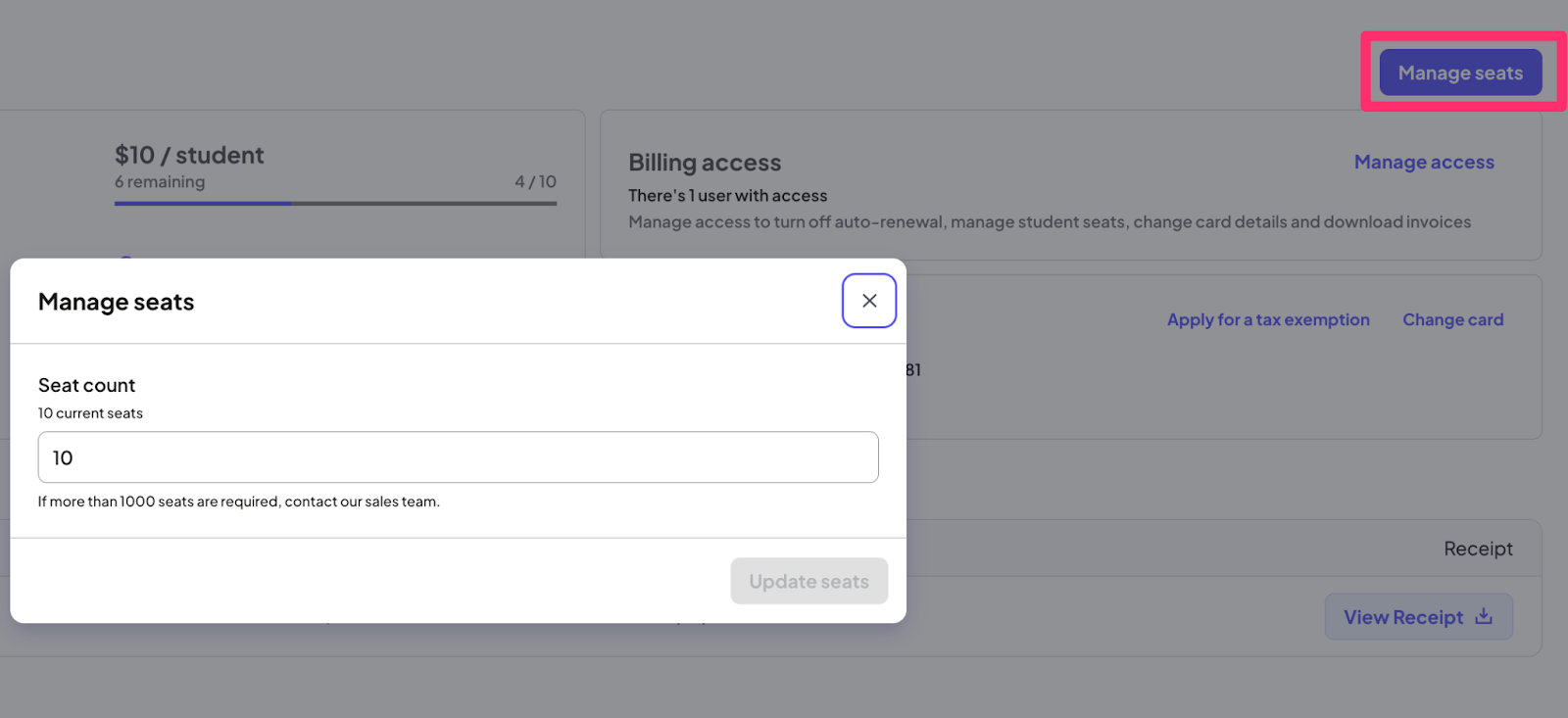
Select Manage seats to update the number of student seats your school needs.
 Can I purchase more seats during the year?
- Yes. You can purchase additional seats at any time, up to a total of 1,000 seats per subscription. Select Manage seats and enter the total number of seats you wish to have. (if you have 10 seats and need 5 more, enter 15).
- Those new seats will be automatically billed at a pro-rated amount for the remainder of your subscription year.
- When your subscription is renewed, you will be charged for the total seat count.
- 1 seat = 1 unique student. A student enrolled in multiple classes still only uses 1 seat.
Who can purchase additional seats?
- Only Admins with billing access are allowed to purchase additional seats.
I purchased more seats than needed, can we return those seats for a refund?
- Unused/undesired seats cannot be refunded.
- You can change the number of desired seats you wish to purchase at the next renewal however.
Before your subscription renews:
- Select Manage seats
- Lower the seat count to your desired number for the following school year
- At the renewal date, the set number of seats will be purchased.
What if teachers roster more student seats than originally purchased?
- This can happen. While only billing admins can purchase seats, teachers can add students to their rosters at any time.
- If this causes your school to exceed its purchased seat count, those additional seats will be billed in 30 days at a prorated rate. Authorized admins will be notified of the overage and will have an opportunity to adjust seat counts before prorated charges are applied.
- Example: You initially purchased 80 seats. As teachers began to add their students, all 80 seats were rostered. 80/80 seats are occupied.
- However, an additional 3 students were added, going over the 80 seats purchased for a total of 83/80 seats. Those three students will are automatically added to the roster given access.
- At that point, you’ll be notified that your seat limit was exceeded.
- You then have two options:
-
Return to the original number of purchased seats by removing students from the "Manage Roster" tab within 30 days
Do nothing, and after 30 days, your credit card will be charged a pro-rated amount for those additional seats
-
Best practice: Assign a max number of seats per teacher and monitor usage regularly through the billing dashboard.
Renewing or canceling your subscription
By default, auto-renew is turned on. Your renewal date and cost will be listed on your billing dashboard.
To turn off auto-renew, toggle the Auto-renew switch off in the billing dashboard.
What happens if we choose not to renew?
If your subscription is not renewed:
- All Enterprise Starter features (like Khanmigo, reporting tools, billing access) will end at the close of your current term
- All accounts will revert to standard Khan Academy accounts
- All classes will remain, but revert to standard Khan Academy classes
- Students and teachers will still retain their learning data
Tax exemption
You can apply for tax exemption even after your purchase.
- From the billing dashboard, select Apply for a tax exemption
- If approved, your exemption will apply to additional seat purchases and future renewals only
- No refund will be issued for already-charged tax
Viewing invoices and receipts
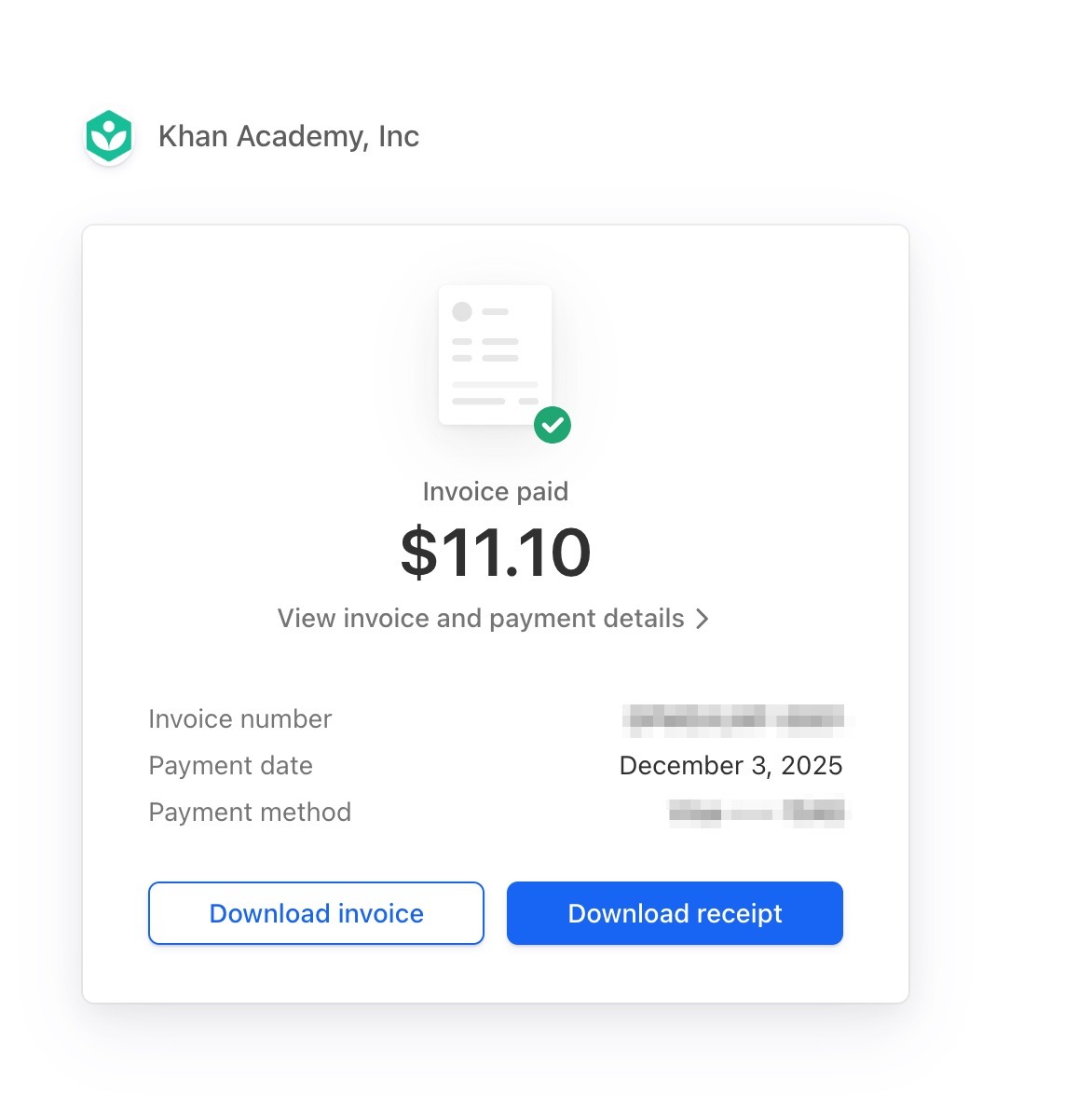
Your receipts are hosted by Stripe.
- From the billing dashboard, click the invoice link under Invoices
- You’ll be taken to Stripe, where you can download both:
- A full invoice
A receipt for your records
Who should I contact if I have billing issues?
If you're experiencing billing-related issues or have questions about your Enterprise Starter subscription:
- Contact your organization’s billing admin for changes to billing access or permissions
- For help from Khan Academy’s support team submit an issue